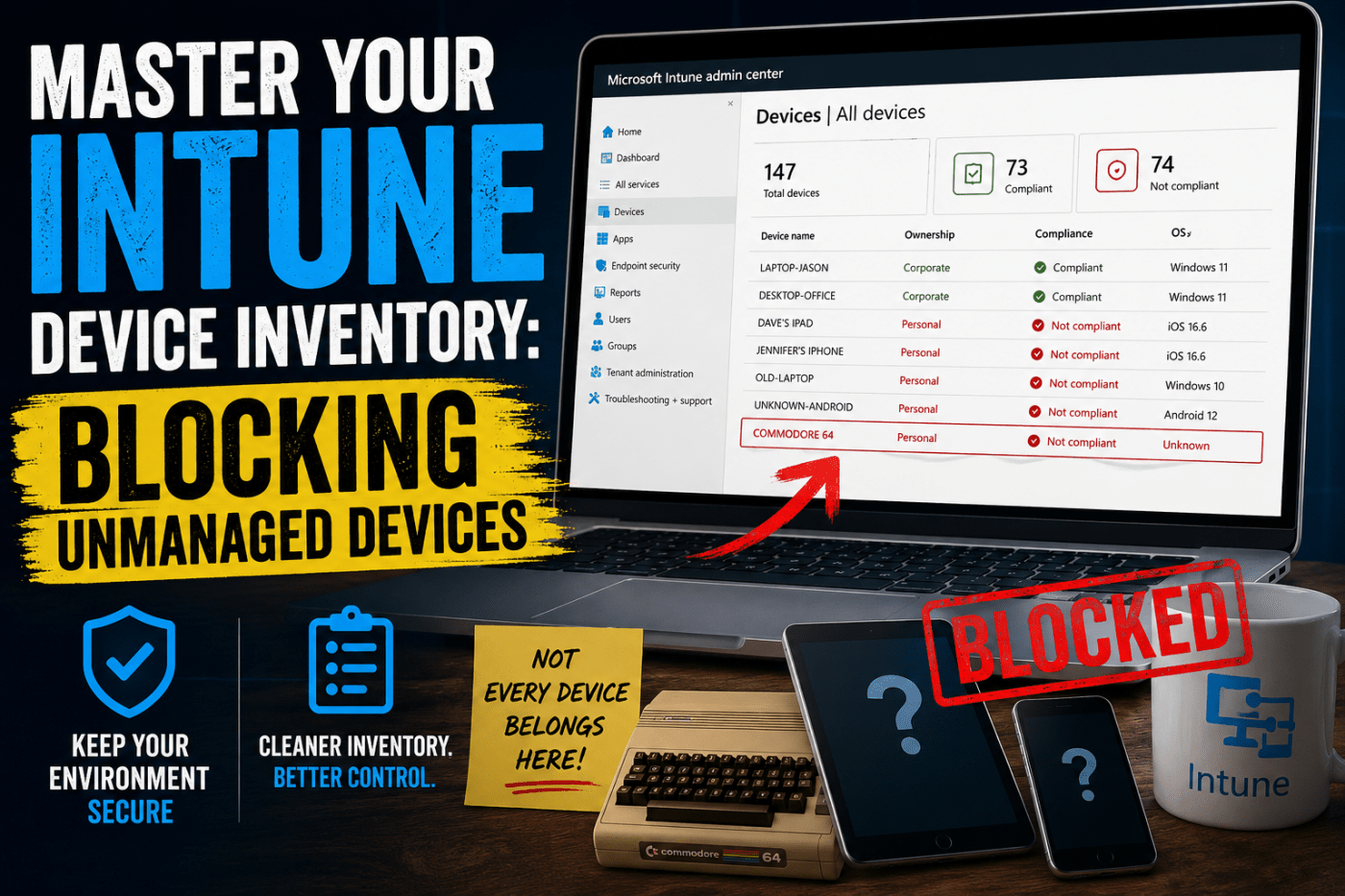
Jason was looking through his Intune device list one morning and couldn’t believe what he was seeing.
There were 147 devices enrolled, but many of them made no sense. Personal phones. Old laptops. An iPad called “Dave’s iPad” even though nobody named Dave worked there anymore.
Then things got even stranger.
The company owner, Charles, submitted a ticket asking if he could enroll his old Commodore 64 from the 1980s so he could access SharePoint.
Funny? Yes.
A security risk? Absolutely.
When you don’t control how devices get into Intune, your inventory quickly turns into a dumping ground for random hardware. Before long, nobody knows which devices belong to the business and which ones don’t.
That creates security risks, compliance headaches, and a lot of unnecessary work for IT.
How Intune Decides Whether a Device Is Company-Owned
A common misconception is that Intune somehow knows who owns a device.
It doesn’t.
Intune only knows what it’s told during enrollment.
For example, when a Windows device is enrolled through Windows Autopilot, Intune automatically marks it as a corporate device. That’s because the device was registered and prepared by the company before the user even switched it on.
Things are different with manual enrollment.
If a user opens Windows Settings, clicks “Access work or school,” and signs in themselves, Intune has no idea whether that device belongs to the company or the user.
It could be:
- A brand-new company laptop
- A ten-year-old home computer
- A family PC shared with three people
Because Intune can’t verify ownership, it usually treats the device as personally owned.
This is how many organizations end up with messy device inventories full of unknown devices.
The simplest solution is to standardize device onboarding and require all company devices to go through Windows Autopilot.
Stop Personal Devices from Enrolling
Even if you have a good onboarding process, users can still try to enroll devices manually unless you block it.
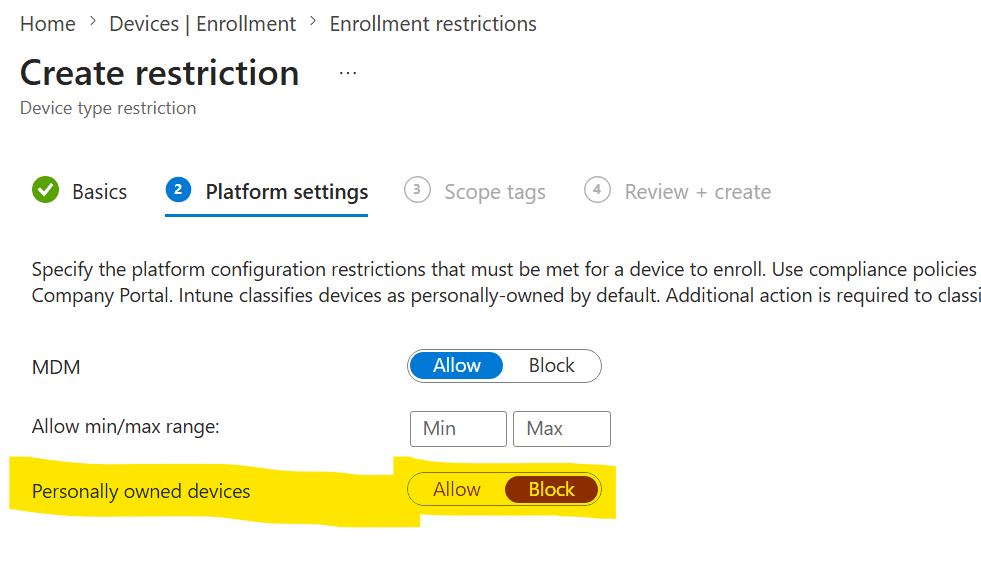
That’s where enrollment restrictions come in.
Think of enrollment restrictions as the security guard standing at the front door.
Instead of letting every device into Intune and sorting it out later, Intune checks the rules first and decides whether the device is allowed in at all.
To configure this:
- Open the Intune Admin Center.
- Go to Devices.
- Select Device Onboarding.
- Open Enrollments.
- Choose Device Platform Restrictions.
From there, you can decide which device types are allowed.
For example:
- Allow Windows devices
- Block Android devices
- Block macOS devices
- Block personally owned devices
If a device doesn’t meet the rules, enrollment is simply denied.
No extra cleanup.
No mystery devices.
No Commodore 64 support tickets.
Different Rules for Different Teams
Not every department has the same security requirements.
Your finance team probably handles more sensitive information than your marketing team.
For situations like this, Intune allows you to create custom enrollment restrictions.
For example, you could create a policy called:
Finance Department – Corporate Devices Only
Then:
- Allow Windows enrollment
- Block personally owned devices
- Assign the policy to the Finance group
When finance users try to enroll a device, Intune applies those stricter rules automatically.
Everyone else continues using the default policy.
This approach works particularly well for MSPs because it allows you to standardize security across multiple customers while still applying different rules where needed.
Why Conditional Access Is Not Enough
This is where many IT administrators get caught out.
They think:
“My Conditional Access policy already requires a compliant company device, so I’m covered.”
Not quite.
Enrollment restrictions and Conditional Access solve two different problems.
Enrollment Restrictions
These decide whether a device is allowed into Intune.
Conditional Access
These decide whether a user can access company data.
The timing is important.
Enrollment restrictions work first.
Conditional Access works later when the user tries to access resources like:
- Outlook
- Teams
- SharePoint
- OneDrive
Without enrollment restrictions, a personal device can still end up inside Intune.
Conditional Access may block access to company data, but the device is still sitting in your inventory.
That leads to:
- Cluttered device lists
- Confusing compliance reports
- Extra administrative work
- Unnecessary security noise
A clean environment starts by preventing unwanted devices from enrolling in the first place.
Final Thoughts
A well-managed Intune environment starts with controlling how devices enter the system.
If company devices are enrolled through Windows Autopilot and personal devices are blocked through enrollment restrictions, your inventory stays clean, accurate, and much easier to manage.
Think of it this way:
- Enrollment Restrictions keep unwanted devices out.
- Conditional Access protects your company data.
You need both.
When they work together, you get a cleaner device inventory, better security, and far fewer surprises when reviewing your Intune tenant.
 Salman Tariq
 SalmanTechBlogs
Leave a comment