
Open Microsoft Intune and everything looks fine. Devices are marked compliant. Green ticks everywhere. It feels under control.
That’s the problem.
Those green ticks can be meaningless. In many environments, they don’t reflect real security at all. They just reflect a default setting most admins never question.
If you manage multiple tenants or inherited a setup, there’s a good chance your environment is exposed right now. Devices appear compliant, but nothing is actually being enforced.
This is where most people get it wrong. They trust the dashboard instead of validating what sits behind it.
1. The Default Flaw Most People Miss
There’s a setting in Intune that quietly undermines everything:
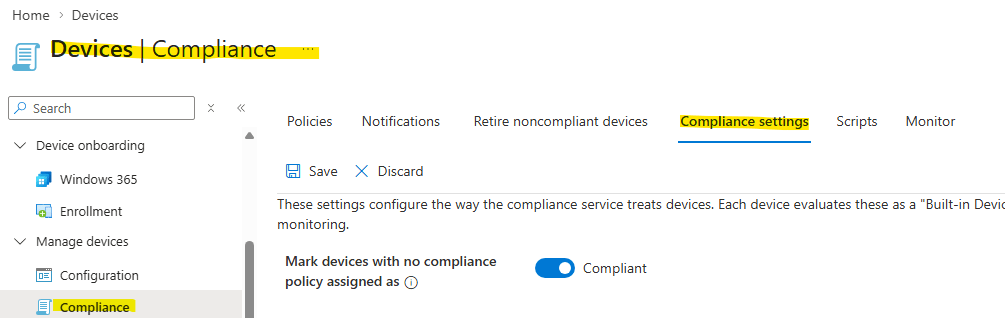
“Mark devices with no compliance policy assigned as compliant.”
It’s enabled by default.
So what happens? You enroll devices, assign nothing, and Intune still reports them as compliant. No encryption checks. No OS requirements. No antivirus validation. Nothing.
It’s not a bug. It’s just a bad default.
Go to:
Devices → Compliance → Compliance settings
Turn that setting off.
Immediately, devices without policies flip to non-compliant. The “healthy” environment you thought you had suddenly looks very different.
That’s not a problem. That’s reality finally showing up.
2. The Illusion of Security
A compliant status without policy enforcement is just a label. It doesn’t mean the device is secure.
And here’s where it gets worse.
Conditional Access policies rely on that compliance status. If Intune says a device is compliant, access is granted. Email, SharePoint, Teams, everything.
So if your compliance is fake, your access control is fake too.
You’re effectively letting unmanaged, unverified devices into your environment because a checkbox says they’re safe.
That’s not a gap. That’s a wide-open door.
3. Build a Real Compliance Baseline
Once you disable that default setting, you need to replace the illusion with actual controls.
Start with the basics. No overengineering.
A proper baseline should require:
- Disk encryption (BitLocker)
- Supported OS version (e.g. Windows 10 22H2 or later)
- Active and healthy antivirus
- Firewall enabled
- TPM present (for Windows devices)
- Real-time protection enabled
These are not “nice to have.” These are minimums.
Create a compliance policy in Intune:
- Go to Devices → Compliance policies
- Create a new policy for Windows 10/11
- Define your requirements clearly
- Assign it to a test group first, then expand
Keep it simple and enforceable. Most environments fail because they try to be clever instead of being consistent.
4. Non-Compliance Means Nothing Without Action
Here’s another mistake people make.
They create compliance policies, see red devices, and think they’ve improved security.
They haven’t.
Without enforcement, non-compliance is just reporting. Users still access everything as usual. No restriction. No consequence.
It’s like installing a smoke alarm and ignoring the fire.
You need to connect compliance to access control.
5. Where Enforcement Actually Happens
This is where Microsoft Entra (formerly Azure AD) comes in.
Conditional Access is what turns compliance into something meaningful.
You create a policy that says:
- If the device is not compliant → block access
That’s it. Simple, but effective.
Set it up:
- Go to Conditional Access policies
- Create a new policy (e.g. “Require compliant device”)
- Apply it to all users (exclude emergency accounts)
- Target all cloud apps
- Under access controls, require device compliance
Start in report-only mode. Watch what would break. Then enforce.
If you skip testing, you will lock people out and create unnecessary chaos.

6. What Happens When You Do This Properly
Once enforcement is active, everything changes.
Devices that fail compliance lose access. Users are forced to fix issues:
- Turn on encryption
- Update their OS
- Enable antivirus
- Fix configuration gaps
Now your compliance dashboard actually matters. Red means blocked. Green means verified.
That’s real control.
Final Reality Check
If your environment shows all green today, don’t assume you’re secure. Assume the opposite and prove yourself wrong.
Most setups fail in three places:
- Default setting left enabled
- No meaningful compliance policies
- No Conditional Access enforcement
Fix those, and your security posture improves immediately.
Ignore them, and you’re running on false confidence.
That’s worse than having no security at all.
 Salman Tariq
 SalmanTechBlogs
Leave a comment