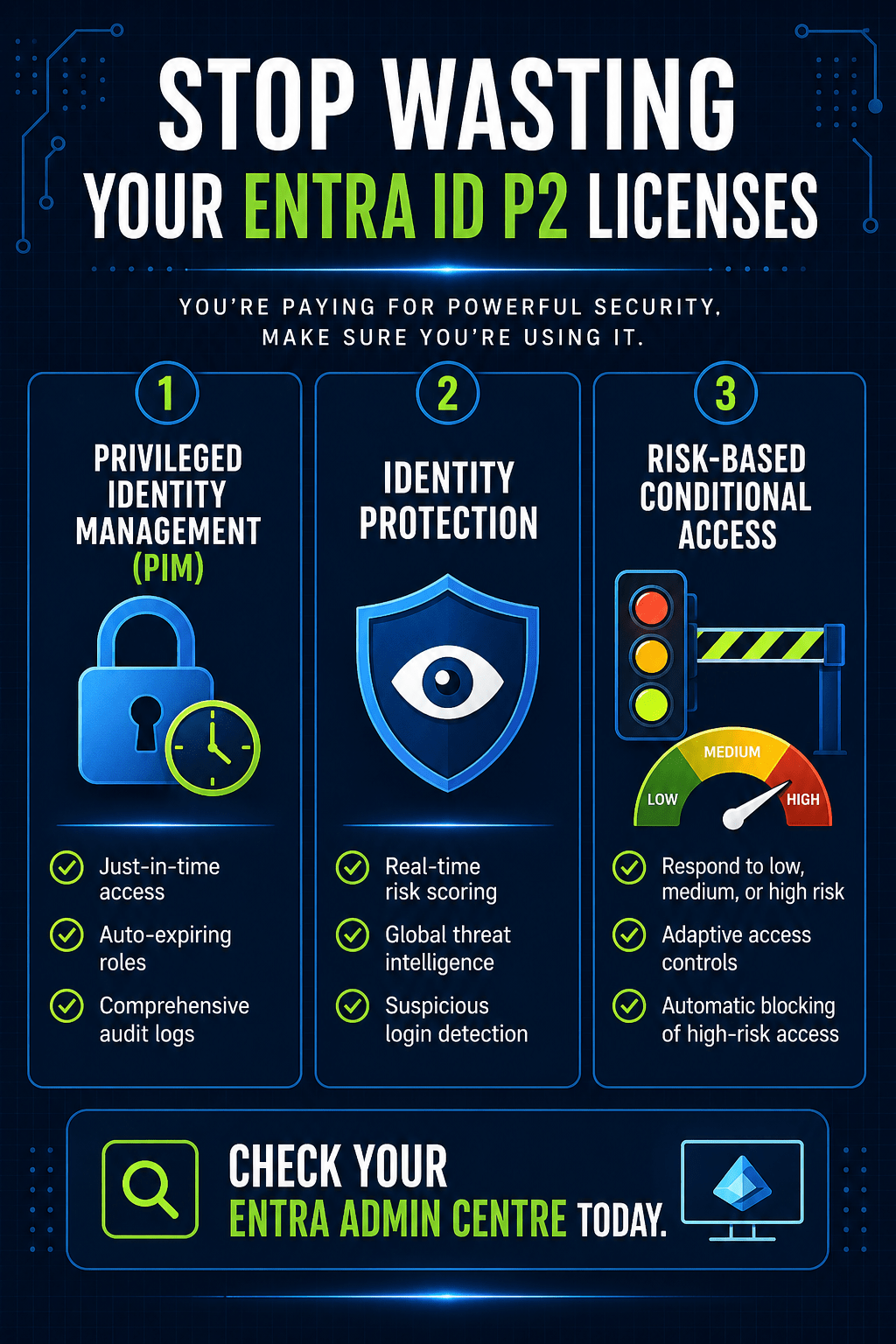
You’re Paying for a Sports Car and Leaving It in the Garage
Let me tell you about a conversation I had not too long ago.
I was reviewing a client’s Microsoft 365 setup when I spotted it, a line item for Entra ID P2 licenses. Assigned to everyone. Monthly. Not cheap.
“Who set this up?” I asked.
A bit of shuffling. Turns out, nobody really knew. Someone on the team had clicked P2 because it “sounded more enterprise.” Six months later, every single premium feature was completely untouched. They were paying for a Formula 1 car and using it to do the school run — except they’d also left it in the garage.
If this sounds uncomfortably familiar, keep reading.
The Dirty Secret About Premium Licensing
Most organisations buy Entra ID P2 with good intentions and zero follow-through. The licenses get assigned. A ticket gets closed. Everyone moves on. And the features Microsoft built to protect you from modern identity attacks, the genuinely clever stuff just sit there, doing nothing.
This isn’t just a waste of money (though it absolutely is that). It’s a security gap. The threats P2 is designed to catch compromised credentials, impossible travel logins, attackers sitting quietly inside your tenant for weeks, they don’t wait for you to get around to enabling things.
So let’s fix that. Here are the three P2 features you should have running by the end of today.
Feature 1: Privileged Identity Management (PIM) — Stop Leaving the Vault Unlocked
Here’s the problem with how most tenants handle admin access: it never turns off.
Your Global Admin account? Active 24 hours a day, seven days a week, whether anyone’s using it or not. That’s not security, that’s an open invitation. One phished password. One compromised session. And whoever’s on the other end has full control of your Microsoft 365 environment, indefinitely, until you notice something’s wrong.
PIM fixes this with a concept called Just-in-Time access, and it’s exactly what it sounds like. Instead of having admin roles permanently switched on, users request access when they actually need it. You can require approval. The role activates for a set window say, four hours and then it expires automatically. No manual cleanup. No “I forgot to remove their access.” The door locks itself.
How to set it up: Head to the Entra admin centre → ID Governance → Privileged Identity Management → Microsoft Entra roles. Find the role you want to control (say, Help Desk Administrator), and instead of assigning it as active, assign the user as eligible. Now they’ll have to consciously request it, with a reason, every time they need it.
Every activation gets logged — who requested it, why, when, for how long. You get a full audit trail without lifting a finger.
Standing privileges are one of the most exploited weaknesses in enterprise environments. PIM eliminates them. It should be the first thing you turn on.
Feature 2: Identity Protection — Microsoft’s Threat Intelligence, Pointed at Your Tenant
Here’s something worth sitting with for a second: Microsoft processes billions of sign-ins every day across their global infrastructure. From all of that, they build risk models constantly updated, extraordinarily sophisticated ones that can spot patterns a human analyst would never catch.
Credentials appearing in a breach dump? Flagged. Someone logging in from London at 9am and then apparently from Singapore at 10am? Flagged. Sign-in from an anonymous proxy? Flagged.
With P2, you get access to all of this. Without it, it’s happening in the background and you’re seeing none of it.
The Identity Protection dashboard (Entra admin centre → Identity Protection → Dashboard) gives you a live view of risky users and suspicious sign-ins. Each detection comes with context, what was unusual, where it came from, how confident the risk score is. It’s the kind of intelligence that would cost a fortune to build yourself, and it’s just… sitting there in your tenant, waiting to be used.
The actionable part: when you spot a high-risk user, you can force an immediate password change. You can investigate. You can act before something becomes a breach rather than after.
One figure I keep coming back to: Microsoft blocks around 10,000 attacks per second globally. Your tenant is part of that picture. Identity Protection is how you see your slice of it.
Feature 3: Risk-Based Conditional Access — Security That Thinks for Itself
Traditional Conditional Access policies are essentially static rules. Is the device compliant? Is the location trusted? Tick, tick, let them in. These aren’t bad but they don’t adapt. They don’t know that the person logging in right now has a risk score of 90 because their credentials just appeared on a dark web forum.
Risk-based Conditional Access does.
Instead of fixed rules, you define responses to risk levels. Low risk? Normal access. Medium risk? Require MFA. High risk? Block entirely, automatically, with no human in the loop. It works around the clock, reacts in real time, and doesn’t require anyone to be watching logs at 2am.
Setting it up: In Conditional Access, create a new policy. Target all users. Set the condition to User Risk: High. Set the grant to Block. Save it.
One critical thing and I say this from experience is to always exclude your break-glass emergency account before you save. This is the account you’d use if something went catastrophically wrong and you needed to get into your tenant regardless. If you forget to exclude it and your own account triggers a high-risk flag, you will lock yourself out. It’s a deeply unfunny situation to be in.
With that policy live, high-risk sign-ins get stopped automatically. No manual review, no delay, no gap.
So Are You Actually Using What You’re Paying For?
PIM removes permanently active admin roles and replaces them with time-limited, audited, just-in-time access. Identity Protection gives you Microsoft’s global threat intelligence applied directly to your tenant. Risk-based Conditional Access automates your response to that intelligence in real time.
Together, they’re a meaningfully different security posture from what you get with P1. But only if you turn them on.
Open your Entra admin centre right now. Check whether PIM is configured. See if your Identity Protection dashboard is showing anything. Look at whether your Conditional Access policies are doing anything with risk scores.
If the answer to any of those is no then that’s today’s task. Your P2 licenses are already paid for. You might as well get something for them.
 Salman Tariq
 SalmanTechBlogs
Leave a comment