Introduction: When a Small Mistake Breaks Everything
You remove a named location while tidying up conditional access. Minutes later, users can’t sign in. Multiple policies depended on it. You don’t remember the IP ranges, there’s no documentation, and there’s no backup.
That situation isn’t rare. It’s exactly the kind of mistake Entra ID hasn’t handled well historically. Configuration errors have been easy to make and painful to undo.
That’s starting to change. Microsoft now offers two recovery options. One is familiar and limited. The other is newer and far more capable, covering broader tenant configuration.
Understanding how they differ matters. Use the wrong one and you’re stuck.
Recovery Options in Entra ID: What Actually Helps
There are two distinct approaches. They solve different problems.
Conditional Access Soft Delete (30 Days)
This has been around for years. If you delete a conditional access policy, it isn’t gone immediately. It sits in a soft-deleted state for 30 days.
You can restore it from the Entra admin center under:
Protection → Conditional Access → Deleted policies
It’s simple and fast. But it only works for full deletions. If you misconfigure a policy instead of deleting it, this won’t help. And after 30 days, recovery is no longer possible.
It’s a safety net, not a recovery strategy.
Entra Backup and Recovery (Preview)
This is where things get more serious.
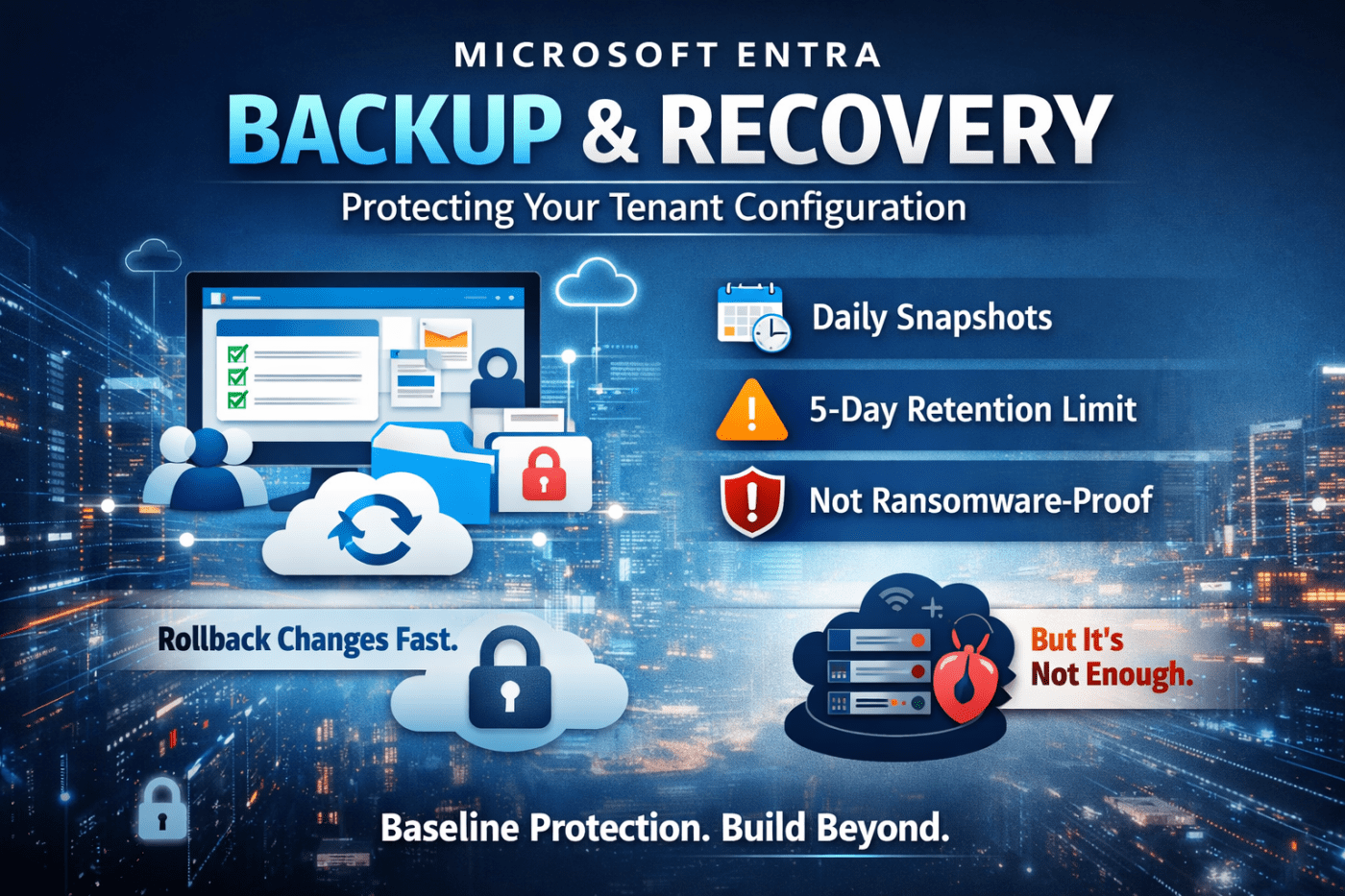
The new backup and recovery feature captures daily snapshots of key tenant configuration. That includes users, groups, applications, conditional access policies, named locations, and more.
It addresses a long-standing gap. Instead of reacting only to deletions, you can roll back changes across your environment.
This is especially useful for operational teams dealing with configuration drift or unintended updates.
How Automated Backups Work
Microsoft handles the process. There’s nothing to configure, but there are limits you need to understand.
Daily Snapshots and Retention
Backups run once per day at a fixed time. You don’t control when.
Each snapshot is retained for five days. That gives you a small window to roll back changes.
That window is fine for obvious mistakes. It’s not enough for issues that go unnoticed.
Difference Reports: Finding What Broke
One of the more useful features is the ability to compare snapshots.
You can load a backup and see exactly what changed. This helps isolate the root cause instead of guessing.
If a conditional access rule suddenly blocks access, the report can show precisely what was modified and when.
This turns recovery from trial-and-error into something much more controlled.
Audit History
Every recovery action is logged. You can see who restored what and when.
This matters for governance and accountability. It also prevents quiet mistakes from going unnoticed.
Using the Backup and Recovery Portal
Access is straightforward:
- Open the Microsoft 365 admin center
- Navigate to Identity → Entra admin center
- Go to Protection → Backup and Recovery (preview)
From there, you can view available snapshots, review changes, and initiate recovery.
Restoring is selective. You choose the objects you want to recover rather than rolling back everything.
Always validate after recovery. Don’t assume the issue is fixed until you confirm it.
Where This Falls Short
This tool helps, but it doesn’t solve everything.
The 5-Day Limit
Five days is tight. If a problem isn’t detected quickly, every available backup may already contain the issue.
This is a real risk for slow-moving problems or unnoticed misconfigurations.
No Real-Time Backup
Backups run once per day. If something breaks hours before the snapshot, your recovery point may already be outdated.
There’s no option to trigger backups on demand.
Same-Tenant Risk
Backups live inside your tenant. If an attacker gains high-level access, they can potentially affect both your environment and its backups.
This is not a ransomware-safe solution.
Final Take: Useful, But Not Enough on Its Own
Entra Backup and Recovery is a solid step forward. It gives you visibility into changes and the ability to roll back common configuration issues.
For day-to-day mistakes, it’s genuinely useful.
But don’t overestimate it. The short retention window, lack of real-time backups, and same-tenant storage mean it’s not a complete safety net.
If you’re serious about resilience, you need more than this. External backups and stronger monitoring are not optional.
Test the feature. Understand how it behaves in your environment. Then build around its limitations rather than assuming it has you covered.
 Salman Tariq
 SalmanTechBlogs
Leave a comment