Imagine this scenario.
Your company announces a new BYOD policy. Bring Your Own Device. Everyone loves the idea. Employees get the flexibility to use their personal phones for work, and management sees it as a win for productivity.
Then IT gets the uncomfortable question.
“Can staff copy an email from Outlook and paste it into WhatsApp?”
The honest answer is: yes… unless you put controls in place.
That’s the reality of BYOD. It’s a constant balancing act between giving employees freedom and protecting company data. You want the convenience of remote work without opening the door to data leaks.
Why Traditional BYOD Approaches Don’t Work
For years, companies tried to solve the BYOD problem using two basic approaches. Unfortunately, neither works very well in practice.
The Problem With Full Device Enrollment (MDM / Intune)
One option is to fully enroll personal devices into mobile device management systems like Intune.
This gives IT full control of the phone. You can push policies, enforce compliance, and even wipe the device if needed.
That works fine for company-owned phones.
But for personal devices, it creates a lot of resistance.
Employees worry about privacy. They imagine IT monitoring their photos, apps, or personal data. Even if that isn’t the case, the perception alone causes problems.
People push back. HR gets complaints. Some staff simply refuse to enroll their phones.
In many organizations, this kills the entire BYOD initiative before it even starts.
The Risk of Unmanaged Devices
The other extreme is doing nothing.
Employees simply install Outlook, Teams, or OneDrive on their personal phones and start working.
Everything seems fine until something goes wrong.
Someone leaves the company but still has emails cached on their phone. A device gets lost in a taxi. A file gets copied from Outlook into Gmail or a notes app.
Suddenly company data is floating around in places it shouldn’t be.
At that point, the company has no control.
This approach isn’t really a BYOD strategy. It’s more like a hope strategy. You hope nothing bad happens.
And that’s not a good security model.
The Better Approach: Control the Data, Not the Device
Fortunately, there’s a third option.
Instead of controlling the entire device, you control how company data behaves inside specific apps.
Microsoft calls this App Protection Policies, also known as Mobile Application Management (MAM).
When you combine this with Conditional Access, you get strong protection without taking over someone’s personal phone.
Employees keep their privacy, and the company keeps control of its data.
Understanding Microsoft App Protection Policies (MAM)
App Protection Policies create a secure environment for work data inside mobile apps.
Think of it like a protected workspace on the phone.
How App Protection Policies Work
Rather than applying rules to the entire phone, the policies apply only to specific apps like:
- Outlook
- Microsoft Teams
- OneDrive
- Word, Excel, and PowerPoint
Inside those apps, company data is protected.
Outside those apps, the phone remains completely personal.
Employees can still use their photos, personal apps, games, and messages without interference.
But within the managed apps, strict rules control what can happen to company information.
Key Security Controls You Can Apply
App Protection Policies give you several powerful controls.
App-level PIN protection
Users must enter a PIN before opening work apps like Outlook, even if the phone itself is already unlocked.
Copy and paste restrictions
Work data can only be copied into other managed apps. It cannot be pasted into personal apps like WhatsApp or Gmail.
Prevent saving to personal storage
Files cannot be saved to the camera roll, notes apps, or other personal locations.
Selective wipe
If an employee leaves the company, IT can remove only the work data while leaving the personal data untouched.
Encryption
All organizational data stored by the app is encrypted.
The result is strong protection without feeling invasive to users.
Where to Configure This in Intune
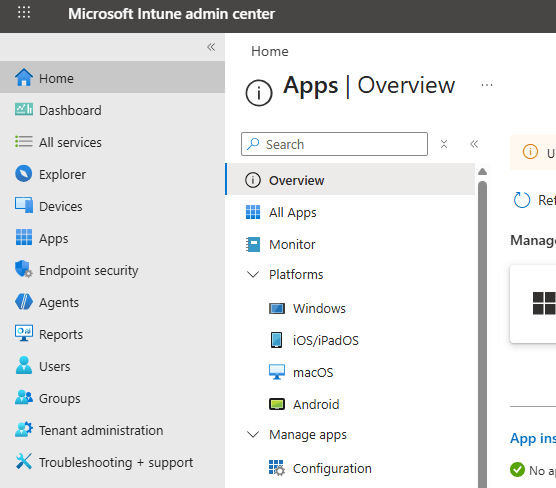
To set this up, go to the Microsoft Intune admin center.
Instead of managing devices, navigate to:
Apps → App Protection Policies
This is an important distinction. You’re managing the behavior of apps, not the device itself.
From there you can create separate policies for:
- iOS devices
- Android devices
Give the policy a clear name like:
“BYOD – Secure iPhone Policy”
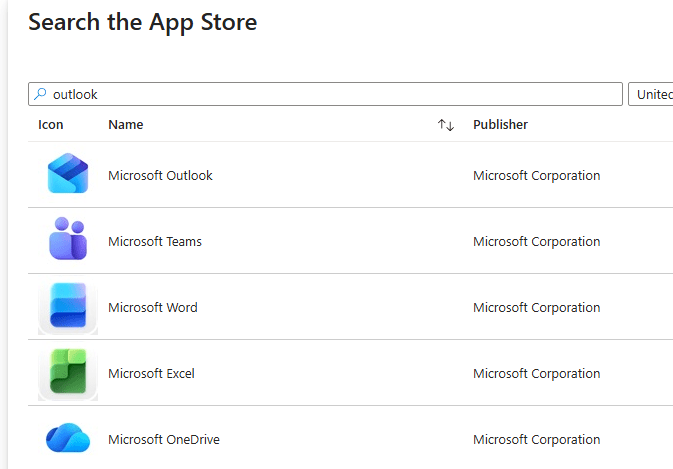
Then select the apps you want to protect, such as Outlook, Teams, and OneDrive.
Configuring Data Protection Rules
Once the policy is created, you can start defining how data moves between apps.
Preventing Data From Leaving Managed Apps
One of the most important settings is controlling where organizational data can go.
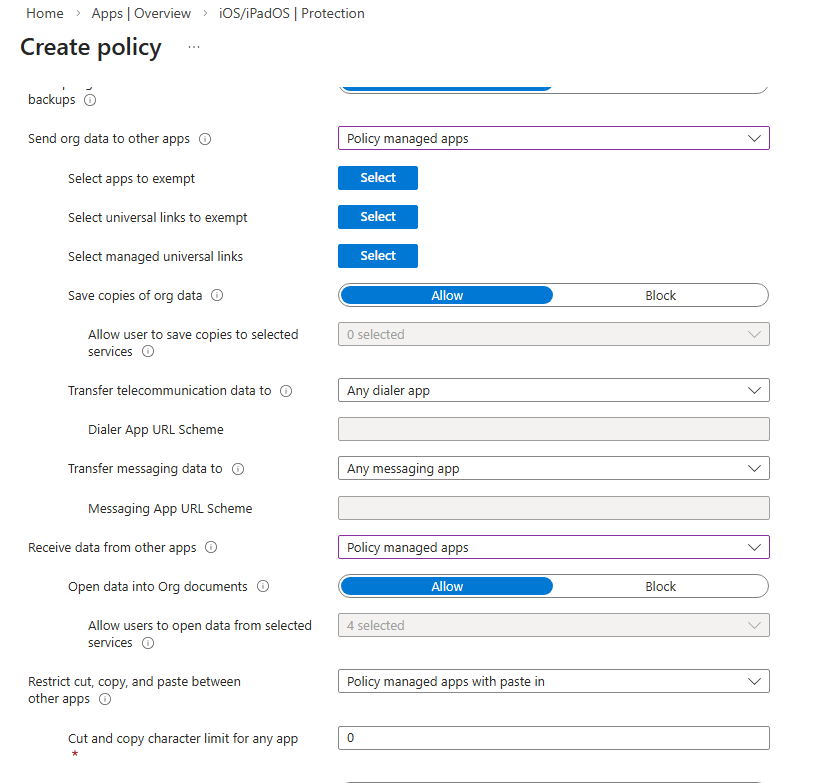
Set “Send org data to other apps” to:
Policy managed apps only
This allows data to move between Microsoft apps like Outlook and Word, but blocks it from being pasted into personal apps.
For example:
Copying an email into Word works.
Trying to paste that email into WhatsApp does not.
This immediately shuts down one of the biggest data leak risks.
Controlling Incoming Data and Storage
You can also control what data can enter managed apps.
Set “Receive data from other apps” to:
Policy managed apps only
This prevents personal apps from pushing content into company apps.
Other important settings include:
- Blocking saves to personal storage
- Preventing backups to iCloud or Google Drive
- Restricting printing
- Limiting web access to Microsoft Edge
These controls create a secure ecosystem around company data.
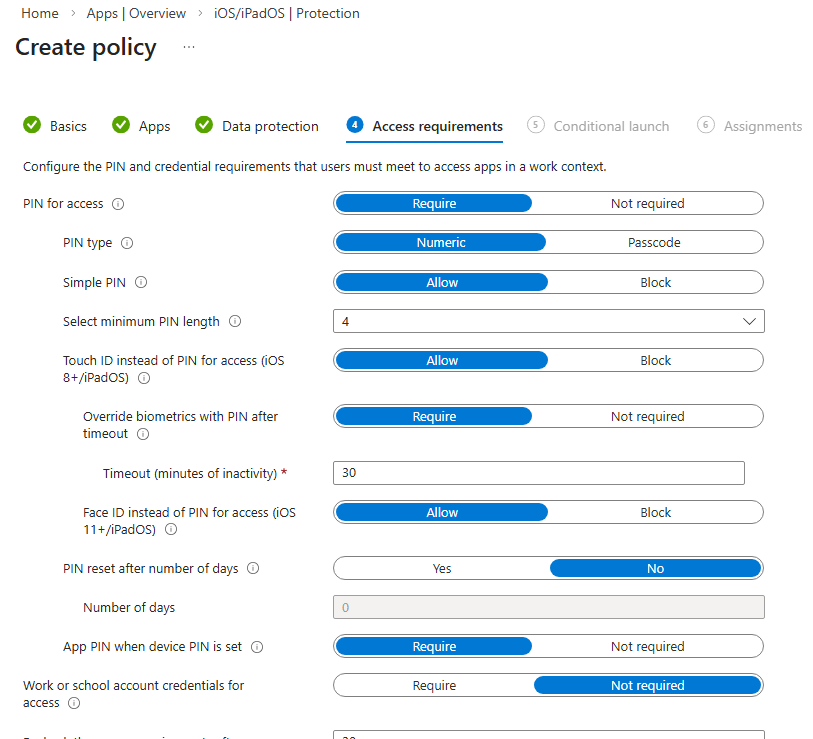
Enforcing App Access Security
Next, you configure how users access the apps.
Require a PIN before opening the app. Set a minimum length and block simple codes like 1234.
You can also allow biometric authentication such as Face ID or fingerprint login.
Additional security settings include:
- Requiring the PIN again after inactivity
- Wiping work data after multiple failed login attempts
- Blocking access on jailbroken or rooted devices
- Preventing access from outdated operating systems
These safeguards ensure only trusted devices can access company data.
Closing the Gap With Conditional Access
App protection policies are powerful, but they aren’t enough on their own.
There is still one possible loophole.
The Web Browser Problem
A user could bypass the protected apps entirely by opening a browser and logging into Outlook Web Access.
From there, they could copy and paste information freely.
To prevent this, you need Conditional Access.
Using Conditional Access to Enforce Managed Apps
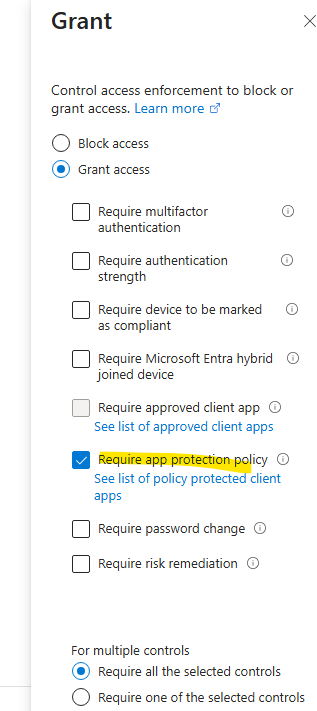
In Microsoft Entra ID, create a Conditional Access policy.
Target:
- All users
- Office 365 apps
- iOS and Android devices
Then set the access requirement to:
Require App Protection Policy
This ensures users can only access company services through managed apps.
If someone tries to use a browser instead, access is blocked.
The Complete BYOD Security Model
When you combine App Protection Policies with Conditional Access, you get the best of both worlds.
- Employees keep control of their personal devices
- Company data remains protected
- No full device enrollment is required
- IT still has strong security controls
It’s a modern BYOD approach that works in real organizations.
Final Thoughts
BYOD doesn’t have to mean losing control of your data.
Full device enrollment often creates friction with employees. Doing nothing leaves the company exposed.
App Protection Policies offer a smarter middle ground.
You protect the data, not the device.
Add Conditional Access to enforce it, and you get a secure, flexible BYOD environment that employees actually accept.
In other words, everyone wins.
 Salman Tariq
 SalmanTechBlogs
Leave a comment