The Real Problem with Microsoft 365 Security
Let’s be honest. Not all data deserves the same level of protection.
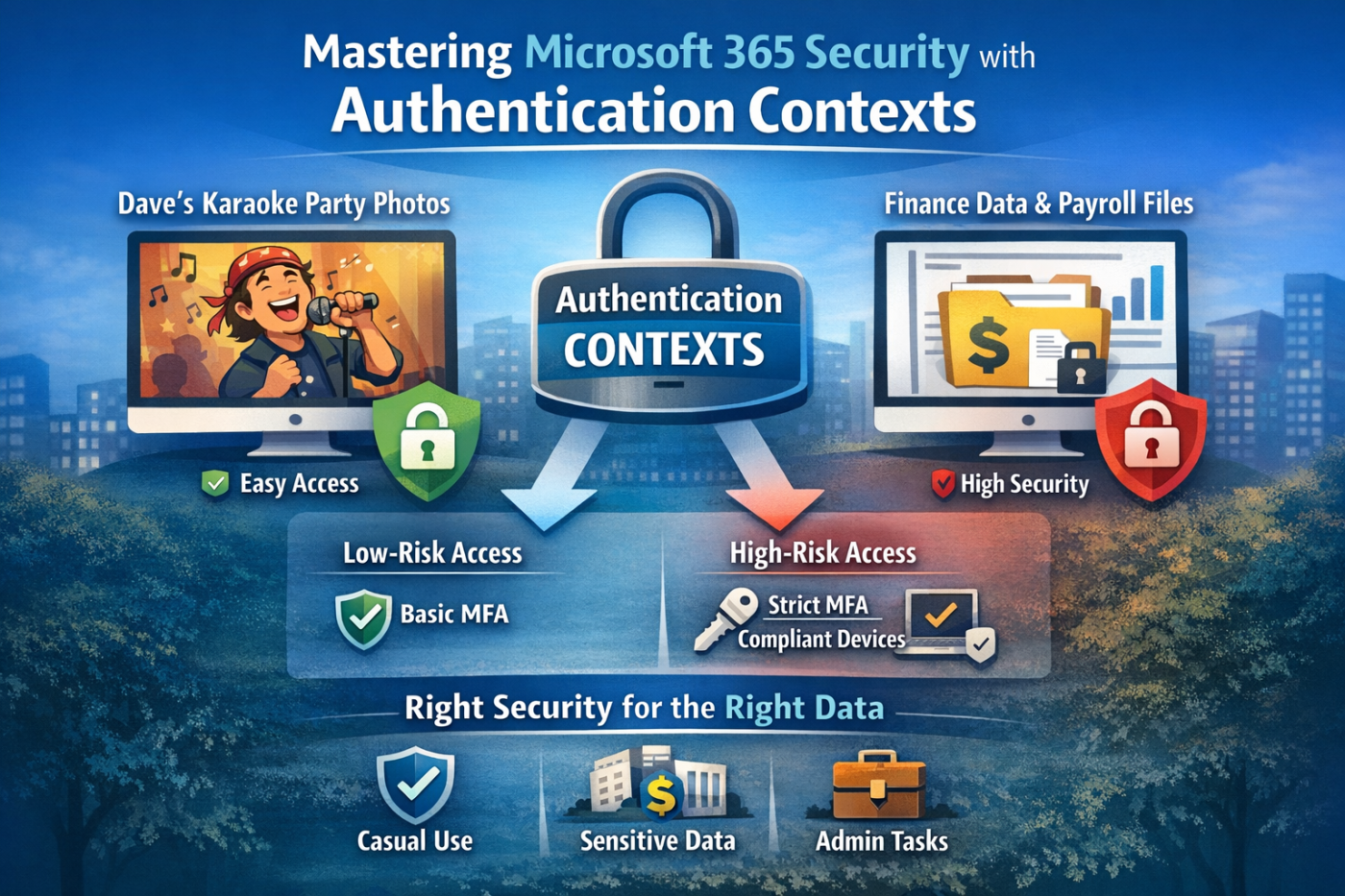
Checking photos from last week’s office party on SharePoint is not the same as accessing payroll records or financial reports. But in many Microsoft 365 environments, the security experience feels identical. Multi-factor authentication prompts appear everywhere. Every file, every app, every action.
Over time, users get used to it. They click approve without thinking. Security becomes background noise.
That’s where problems start.
If everything is protected the same way, nothing truly stands out as high risk. And that’s exactly why authentication contexts in Microsoft 365 matter.
Why Blanket MFA Is Not Enough
Multi-factor authentication is essential. But applying it uniformly across everything creates friction without adding intelligence.
When employees must complete the same level of verification to:
- View a team photo folder
- Check project updates
- Access HR records
- Download payroll data
…you create fatigue instead of awareness.
Security should match risk.
Accessing sensitive financial data or intellectual property should trigger stronger protection than browsing a general SharePoint site. Traditional Conditional Access policies don’t easily allow this level of granularity.
That’s the gap authentication contexts solve.
What Are Authentication Contexts in Microsoft 365?
Authentication contexts are a feature within Conditional Access that allow you to apply targeted security controls to specific resources.
Instead of applying a policy to an entire app like SharePoint, you:
- Create an authentication context (a label).
- Build a Conditional Access policy that targets that label.
- Assign the label to a specific SharePoint site, app, or action.
Now security is triggered only when someone accesses that specific resource.
This is granular access control done properly.
Why This Matters
- Sensitive data gets stronger protection.
- Everyday workflows stay smooth.
- Users only see strict controls when risk is actually high.
- You reduce MFA fatigue.
- Security signals become meaningful again.
How to Implement Authentication Contexts in Microsoft 365
Here’s a simple breakdown of how to set this up.
Step 1: Create the Authentication Context
- Go to the Azure Portal.
- Navigate to Conditional Access.
- Select Authentication Contexts.
- Create a new context.
- Give it a clear name like:
Require Compliant Device for FinanceHigh Risk Data Protection
- Save.
This creates the label. It doesn’t enforce anything yet.
Step 2: Build the Conditional Access Policy
Now you create a policy that targets that context.
- Go to Conditional Access → New Policy.
- Name it clearly, for example:
All Users - Finance Site - Require Compliant Device
- Assign users (exclude break-glass accounts).
- Under Cloud apps or actions, choose Authentication context instead of selecting all apps.
- Select the context you created.
Under Grant controls, require:
- Phishing-resistant MFA
- Device marked as compliant
Set it to “Require all selected controls.”
Start in Report-only mode to test safely.
Step 3: Assign the Context to a SharePoint Site
This is where the precision happens.
You attach the authentication context to a specific SharePoint site.
Microsoft is rolling out UI-based management, but you can apply it today using PowerShell.
Example:
Connect-PnPOnline -Url https://yourtenant.sharepoint.com/sites/finance -InteractiveSet-PnPSite -Identity https://yourtenant.sharepoint.com/sites/finance -ConditionalAccessPolicy AuthenticationContextSensitiveDataGet-PnPSite -Identity https://yourtenant.sharepoint.com/sites/finance | Select Url, ConditionalAccessPolicyMake sure the authentication context name matches exactly.
Once applied, only that SharePoint site will trigger the stronger Conditional Access policy.
Everything else in Microsoft 365 remains unaffected.
What Happens in Real-World Testing?
Here’s how it typically plays out.
Scenario 1: General Microsoft 365 Access
A user logs in from an unmanaged device.
They:
- Access Outlook
- Open SharePoint home
- Browse a team site
Access is granted using baseline MFA.
No unnecessary friction.
Scenario 2: Accessing the Finance SharePoint Site
The same user attempts to open the finance site.
Now:
- The authentication context is detected.
- The stricter Conditional Access policy is triggered.
- If the device is not compliant, access is blocked.
Even if MFA was completed earlier, access is denied because the required controls are not met.
Sensitive data stays protected.
Why Authentication Contexts Are a Strategic Advantage
Most organizations treat Microsoft 365 security as a perimeter problem.
Authentication contexts let you treat it as a data-value problem instead.
You protect:
- Finance data
- HR records
- Intellectual property
- Executive SharePoint sites
- Admin tasks
…without slowing down the entire organization.
This approach:
- Reduces MFA fatigue
- Improves user experience
- Increases protection for high-value assets
- Aligns Conditional Access with real-world risk
It’s smarter security, not heavier security.
Final Thoughts: Stop Overprotecting Low-Risk Data
If every door in your building requires a biometric scan, people stop taking it seriously.
But if only the vault requires it, everyone understands why.
That’s exactly what authentication contexts in Microsoft 365 allow you to do.
Start small:
- Identify your most sensitive SharePoint site.
- Create an authentication context.
- Apply a stricter Conditional Access policy.
- Test in report-only mode.
- Roll it out gradually.
Granular control is no longer optional in modern Microsoft 365 security. It’s necessary.
Now the real question is: which site in your tenant actually needs that vault-level protection?
 Salman Tariq
 SalmanTechBlogs
Leave a comment