Recently, I encountered an issue where Outlook’s OST files were consuming a significant amount of disk space on my C: drive, which I couldn’t expand. Unfortunately, this is the default location for OST files, and it was causing storage constraints. However, I had another drive with ample free space that I wanted to use for these files.
Initially, I attempted to modify the existing OST file path and even went as far as deleting and reconfiguring all my email accounts in Outlook. However, each time, the OST files would still default to being stored on the C: drive.
After some troubleshooting, I found a solution that successfully changed the default location for OST files. Once I reconfigured my accounts following this method, the OST files were saved in the new location as expected. Below are the steps I followed to achieve this.
1. Close Outlook: Ensure that Microsoft Outlook is completely closed before proceeding.
2. Open the Registry Editor: Press `Windows + R`, type `regedit`, and press Enter to open the Registry Editor.
3. Navigate to the Outlook Registry Path: In the Registry Editor, go to the following path:
HKEY_CURRENT_USER\Software\Microsoft\Office\<version>\Outlook
Replace `<version>` with your Outlook version number (e.g., `16.0` for Outlook 2016).
4. Create a New Expandable String Value: Right-click on the Outlook folder, select New, and then choose Expandable String Value.
5. Name the New Entry: Name the newly created value `ForceOSTPath` and press Enter.
6. Modify the Entry: Right-click on `ForceOSTPath` and choose Modify.
7. Set the New OST File Path: In the Value data field, specify the new folder path where you want the OST files to be stored, then click OK.
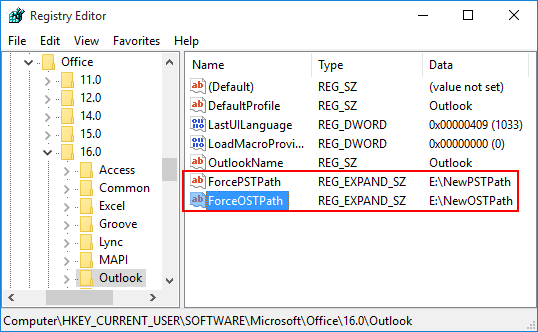
8. Exit the Registry Editor: Close the Registry Editor.
Once these steps are complete, reconfigure your Outlook accounts, and the OST files will be saved in the new specified location.
 Salman Tariq
 SalmanTechBlogs
Leave a comment