Local Administrator Password Solution (LAPS) is an Azure Feature that allows IT Administrators to secure and protect local administrator passwords. This includes automatic rotation of passwords as well as backing up the passwords to Azure Active Directory.
The Dangers of Local Admin Access
One of the most common mistakes that I see off the top of my head with organizations, is providing local administrative access to computers for employees. While it might sound pretty convenient, the fact is that this practice holds a huge security risk that literally cannot be left unattended.
Well, if they can log into their computer with their own username and password, and that just so happens to be part of the local admin group, then they are given full admin access to that device. In other words, they can install software and make any type of change in settings and do whatever they like within a computer. This may seem quite a reasonable approach, but the real issue here is that if that is compromised by an adversary or malware, then it immediately achieves full admin-type access, the potential for disaster to strike.
If you have an IT department or a good team there for you, they will ensure that others in the organization are just part of the standard access group. As it turns out, you’re only allowed to install approved software and change limited settings. Then they have this so-called “master password,” which some might use to call and ask to install something or do more advanced stuff with the computer.
But naturally, this approach brings its own problems. The master password is typically the same across the organization. If you have a business with between 10,000 and 50,000 computers, there is just one master password. Imagine the disaster if someone obtains that master password.
Introducing LAPS: The Local Admin Password Solution
Luckily, if you’re a Microsoft 365 user, there is an inbuilt solution that can help with this: the Local Admin Password Solution, or LAPS. In this blog post, I will guide you through setting it up for your organization.
Enabling LAPS in Intune
Sign in to the Microsoft 365 admin center with the global admin account. Go to Microsoft Entra Admin Center (https://entra.microsoft.com).
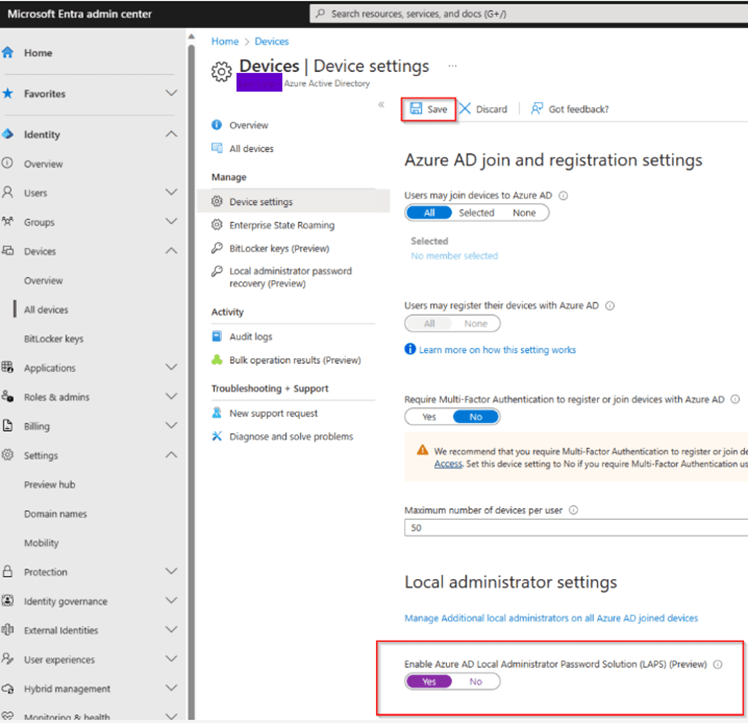
Go to Devices. From there, browse to Device settings and scrolling way down to the Local administrator settings. Toggle it to Yes and hit Save.
Creating an Account Protection Policy
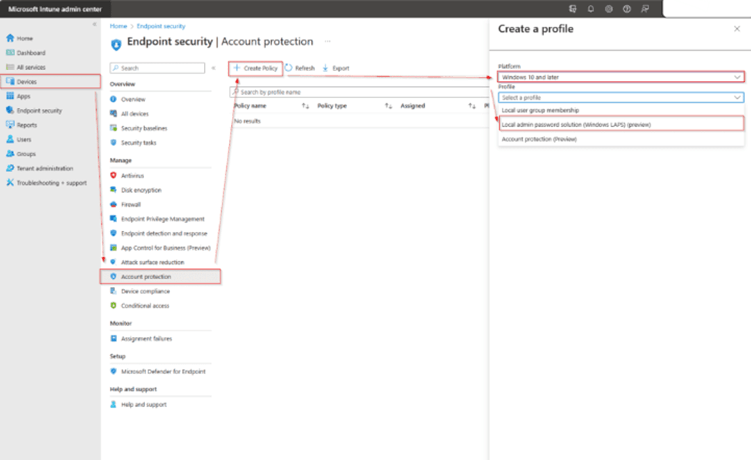
Go to Microsoft Intune admin center > head to Endpoint Security > Account Protection > Click on + Create Policy > Set Windows 10 and later for the platform, then select Local admin password solution (Windows LAPS) (preview) for the Profile > Click Create.
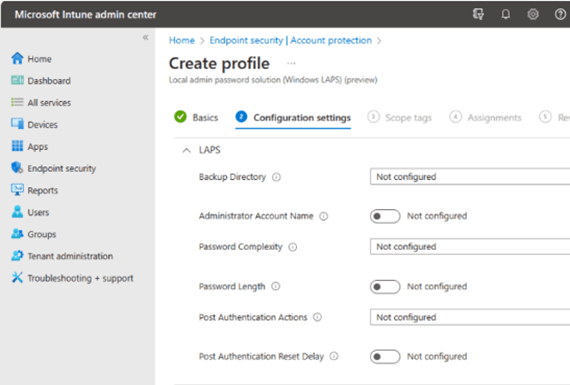
I called it “Configure Windows LAPS Policy“. Then I’ll click Next, and here are the few options that we have, which could be configured:
Backup location: Where are we going to back up these passwords? Of course, we have the possibility of backup to Azure AD or on-premises Active Directory. For now, I will leave it unconfigured.
Password age: This is how long until it expires. If I do not set anything, it defaults to 30 days. You can select any from 7 days through 30 or more. Admin account name: You don’t have to use just “Administrator”; you can put in something descriptive like “AdminAccount” or similar. I will just leave this one for simplicity.
Password complexity: If I don’t set this, it uses the “Complex” option, so you’ll get a mix of uppercase, lowercase, numbers, and special characters.
Password length: These are 14 characters by default if you don’t set a configuration, but you can set this from 8 through 64 characters.
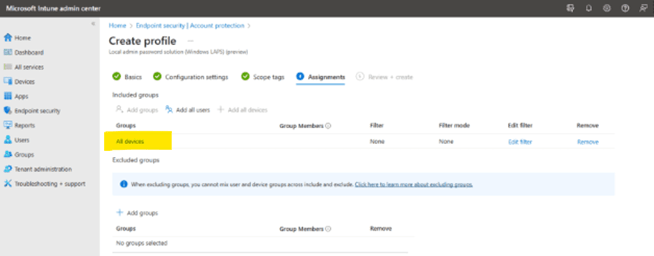
Leave the last two settings at their defaults; then click Next. On the Assignments page, I’ll choose to apply this policy to all devices and click Create to complete the policy.
The next screen is the scope whether you want to apply this policy to all or specific devices using a group. I applied to all devices.
You can verify these settings in registry by browsing to the following location:
HKLM\\Software\\Microsoft\\Policies\\LAPS
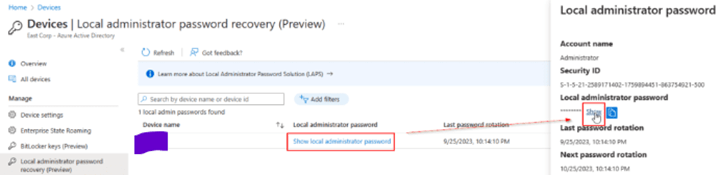
Under the Devices section, you can see the devices. If you click on that, it presents you the content of the Local Admin Password. If you click on “Show” button, it reveals the present password that has been auto-generated a few minutes back. This password gets auto rotated after every 30 days or so.
Manual Rotation of the Local Admin Password
Go to Microsoft Intune admin center > Devices > All devices > Click on your device you want to change the LAPS password > go to the 3 dots > Rotate local admin password.


Removing Global Admins from Local Admin Access
One other thing to point out here, by default, the role that your Microsoft 365 Global Admin is assigned also receives a local admin on every device. It should be disabled as a security measure. This means that no users with the Global Admin role will have local admin rights on every single device, which in any case is a more secure method.

Conclusion:
A lot was discussed in this blog post, from the risks associated with giving local administrative access to users and how LAPS—a built-in solution within Microsoft 365—will help mitigate this risk. But what it will bring when set up to work in Intune is unique passwords for each local admin, reducing potential damage in case of a successful breach. Taking away local admin from the Global Admin role is one further step toward improving the security posture in your organization.
 Salman Tariq
 SalmanTechBlogs
Leave a comment