Imagine this.
Your IT lead, Jason, rolls out a sign-in risk policy. He sets everything to maximum. Low, medium, high. All blocked.
Within minutes, the complaints start. Phones ringing nonstop. Seventeen users locked out. Charles Bell calls it “catastrophic”… twice. Emails stop flowing. Work grinds to a halt.
All because Jason confused sign-in risk with user risk.
They sound similar. They live in the same place. But they do very different things. Get them wrong, and you either lock everyone out or leave the door wide open.
Let’s break it down properly so you can avoid that situation.
1. Before You Start: Licensing and Policy Changes
You need Entra ID P2
None of this works without it.
If you’re on a basic plan or even Microsoft 365 Business Premium, you won’t have access to risk-based policies. A lot of admins run into this and wonder why options are greyed out.
Simple answer: no P2, no risk policies.
Legacy policies are on the way out
The old sign-in risk policies are being retired on October 1, 2026.
If you’re still using them, they’re now read-only. Microsoft wants everything handled through Conditional Access going forward.
Honestly, it’s a good move. It keeps everything in one place.
But don’t leave migration until the last minute. Set up new policies now, test them properly, and avoid panic later.
2. Sign-in Risk: What’s Happening Right Now
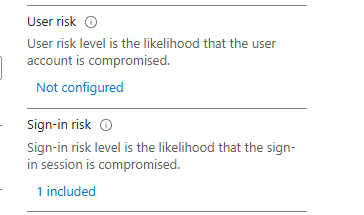
Sign-in risk is all about the login attempt itself.
Every time someone signs in, Microsoft evaluates that attempt in real time. It looks at things like:
- Impossible travel (London to New York in minutes)
- New or unusual devices
- Strange locations or IPs
- Suspicious behaviour patterns
Based on that, it assigns a level: low, medium, or high.
Think of it like a bouncer at the door. It judges each attempt before letting it in.
How to configure it properly?
Start simple.
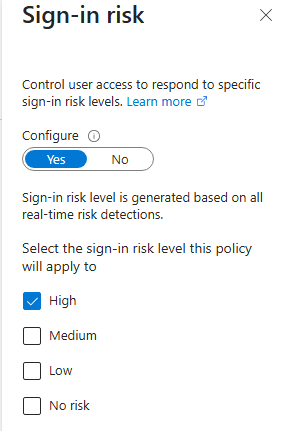
- Focus on high risk only
- Avoid low risk at first, it creates too much noise
- Medium can come later once you understand your environment
For controls:
- MFA is usually the best starting point
- Block is stricter but can cause disruption
Always exclude your break-glass accounts. That’s your safety net.
And before enforcing anything, check your sign-in logs. Understand what “normal” looks like in your environment.
3. User Risk: What’s Happened Over Time
User risk is different. It’s about the account, not a single login.
It builds up over time based on signals like:
- Leaked credentials found online
- Suspicious activity across multiple sign-ins
- Known compromise indicators
This is Microsoft basically saying: “This account might already be compromised.”
Why MFA isn’t enough here
If someone already has the password, MFA alone doesn’t fix the problem.
An attacker could still get through if they manage to pass that second step.
That’s why user risk needs stronger action.
What actually fixes it
You need remediation:
- Force a password reset
- Require re-registration of MFA
- Or use Require risk remediation in policy
This locks the account until the user fixes it themselves.
No manual admin intervention needed. It’s cleaner and more secure.
4. Why You Need Both
This is where many setups go wrong.
If you only use sign-in risk:
- You catch suspicious logins
- But miss compromised accounts
If credentials are leaked and the attacker logs in normally, sign-in risk might not trigger at all.
That’s a big gap.
Real-world impact
Without a user risk policy:
- Compromised accounts stay active
- Attackers move quietly
- Data can be accessed or exfiltrated
With both policies in place:
- Sign-in risk protects the door
- User risk protects the identity
You cover both angles.
5. What You Should Do Right Now
Go into Identity Protection and check:
- Risky Users
- Risky Sign-ins
If you see flagged users and no policies acting on them, that’s a problem.
Starting point
- Set both policies to high risk only
- Apply to all users (exclude emergency accounts)
- Monitor logs
- Adjust gradually
Don’t rush into low and medium until you understand the impact.
6. Quick Setup Overview (Conditional Access)
Sign-in Risk Policy
- Users: All (exclude break-glass)
- Apps: All cloud apps
- Condition: Sign-in risk = High
- Control: Block or require MFA
User Risk Policy
- Users: All (exclude break-glass)
- Apps: All cloud apps
- Condition: User risk = High
- Control: Require risk remediation
Final Thoughts
Sign-in risk is real time.
User risk looks at the bigger picture.
You need both.
One without the other leaves gaps. Together, they give you a much stronger, layered defence.
If you’re running Entra ID P2, this shouldn’t be sitting idle. Take a look at your setup, put the right policies in place.
 Salman Tariq
 SalmanTechBlogs
Leave a comment