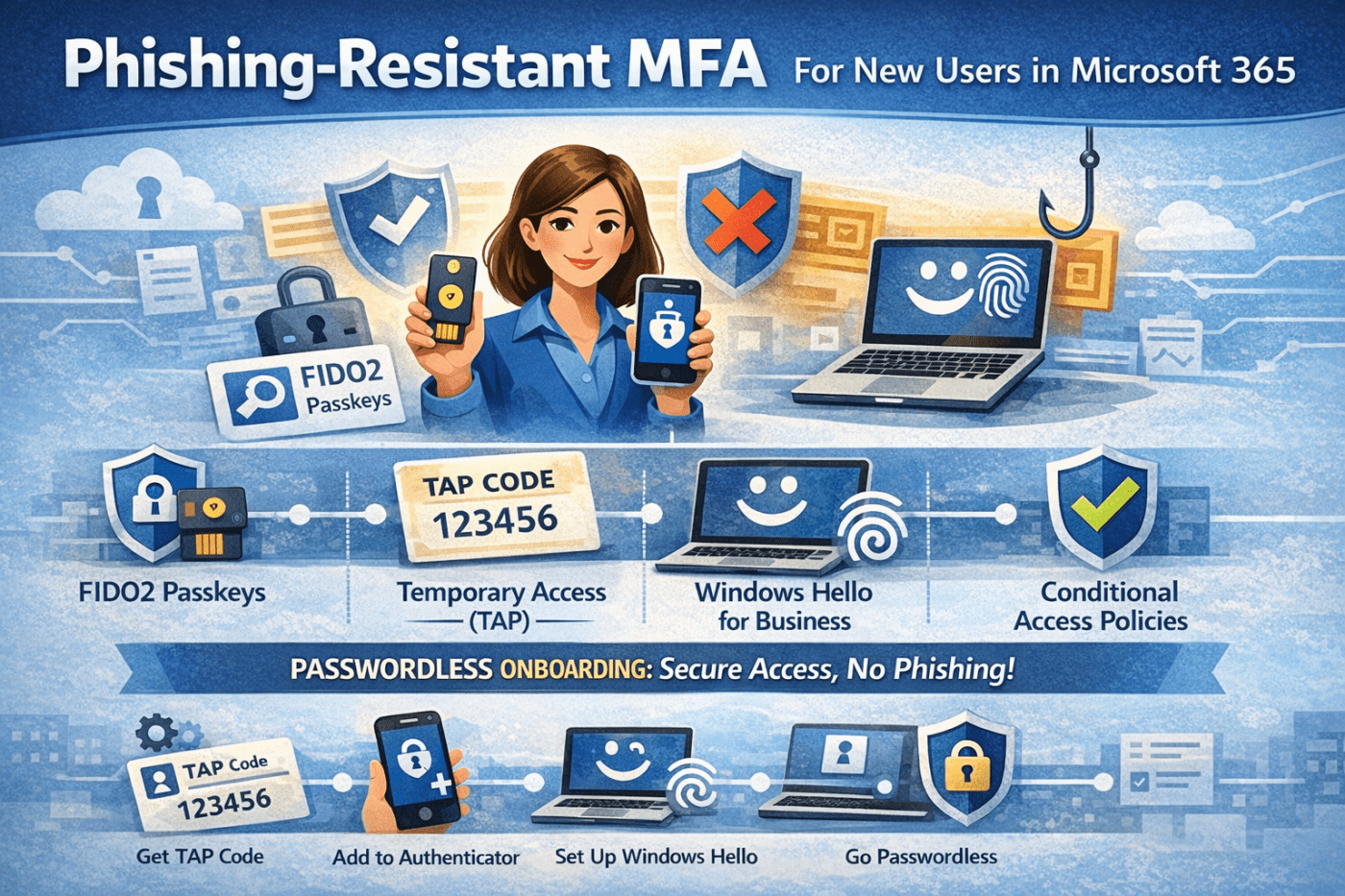
A practical and secure way to onboard new employees without relying on passwords.
By using FIDO2 passkeys, Windows Hello for Business, Temporary Access Pass (TAP), and Conditional Access policies in Microsoft 365, you can deliver a phishing-resistant login experience from day one.
This approach strengthens security, simplifies onboarding, and removes the weak link most attackers exploit: the password.
Why Choose Phishing-Resistant MFA?
Passwords get stolen. SMS-based MFA gets phished. Users approve prompts without thinking.
Modern authentication methods like passkeys and Windows Hello are built on FIDO2 standards and device-bound credentials. That means authentication is tied to:
- The user’s device
- Biometric verification such as face or fingerprint
- Hardware-backed cryptographic keys
Even if a user lands on a fake login page, their credentials cannot be reused elsewhere. Phishing attacks simply fail because there is nothing reusable to steal.
For IT teams, this dramatically reduces credential compromise risk while improving the user experience.
Prerequisites Before Deployment
Before rolling this out, make sure your environment is ready:
- Migrate from legacy MFA to modern Authentication Methods policies in the identity admin center.
- Ensure devices run supported versions of Windows 10 or Windows 11 to enable Windows Hello for Business.
- Start with a pilot group before organization-wide deployment.
- Review Conditional Access policies to avoid accidental lockouts.
Planning upfront prevents onboarding friction later.
Deployment Overview
Here is the recommended rollout sequence:
- Enable FIDO2 passkeys.
- Enable and configure Temporary Access Pass (TAP).
- Create a custom Authentication Strength that allows only phishing-resistant methods.
- Create new users without sharing their password.
- Enforce the Authentication Strength using Conditional Access.
- Guide users through enrollment step by step.
Let’s break it down.
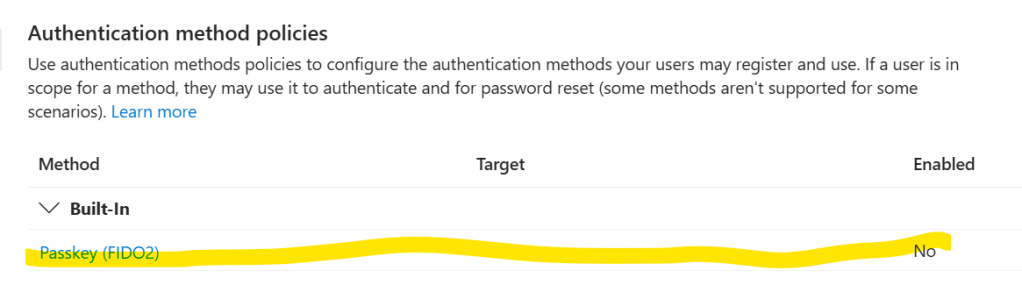
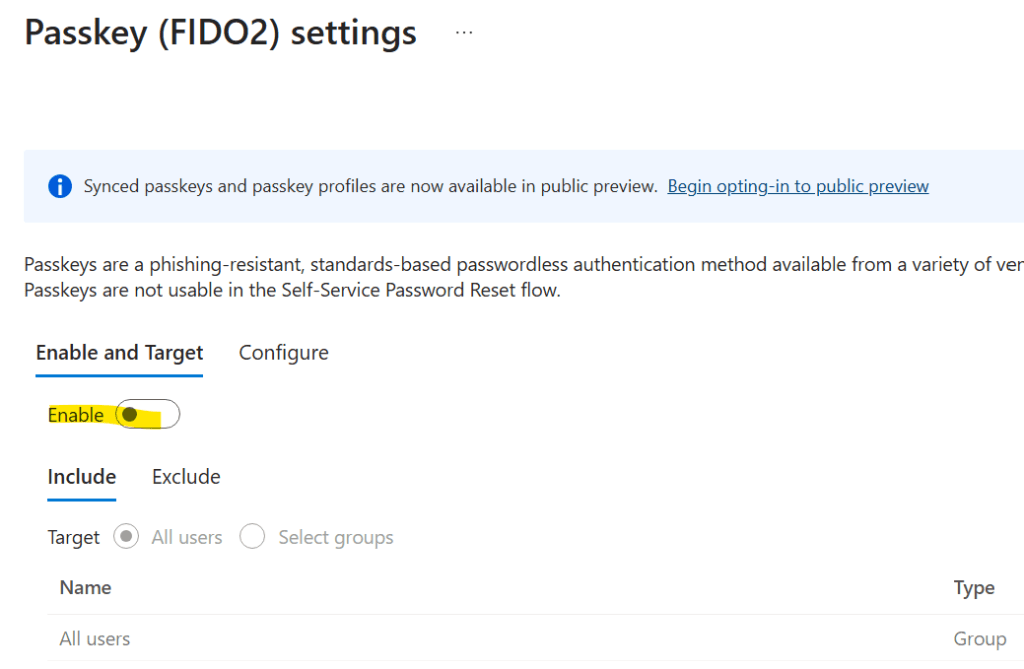
1. Enable FIDO2 Passkeys
In the Microsoft 365 admin center:
- Navigate to Identity and Security settings.
- Open Authentication Methods.
- Enable FIDO2 security keys and passkeys.
- Review targeting settings carefully before saving.
If you plan to use mobile-based passkeys, confirm Microsoft Authenticator preview settings are properly configured.
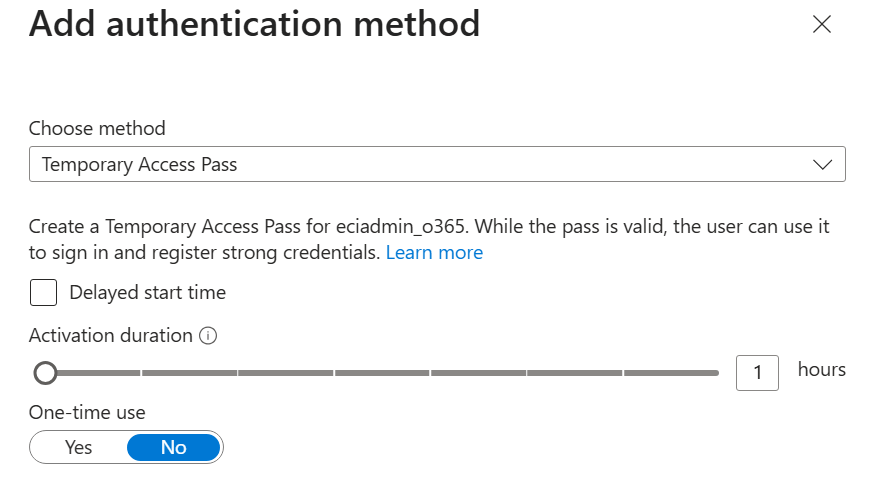
2. Enable Temporary Access Pass (TAP)
Temporary Access Pass allows users to sign in temporarily while registering stronger authentication methods.
Recommended configuration:
- Lifetime: 1 hour is usually practical.
- Minimum length: 8 characters or more.
- One-time use: Recommended for higher security.
- Optional delayed start: Useful if you generate TAP before the employee’s first day.
TAP acts as a secure bridge between account creation and passwordless setup.
3. Create a Custom Authentication Strength
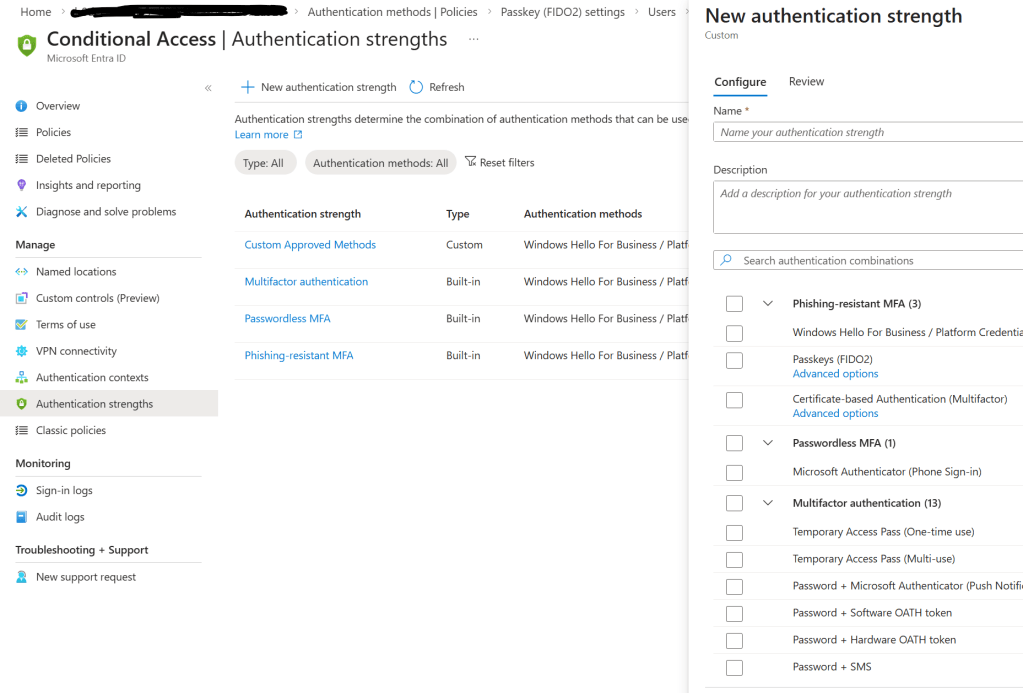
Authentication Strength allows you to define exactly which methods are acceptable.
Create a custom strength that includes only phishing-resistant methods such as:
- Windows Hello for Business
- FIDO2 passkeys
- Certificate-based or hardware-backed credentials
Exclude weaker methods like SMS or voice calls.
This ensures Conditional Access only permits secure authentication flows.
4. Create the User Without Sharing a Password
When creating a new user in Microsoft 365:
- Assign a long, complex password.
- Do not share it with the user.
The goal is to eliminate password dependency entirely. Users will authenticate using TAP, passkeys, and Windows Hello instead.
This removes one of the biggest onboarding risks: insecure password distribution.
5. Enforce Security with Conditional Access
Create a Conditional Access policy that:
- Targets a test group first.
- Applies to Microsoft 365 cloud apps.
- Requires your custom Authentication Strength.
Start in Report-only mode to evaluate impact. Once validated, enable enforcement.
This staged approach prevents accidental service disruption.
Step-by-Step: Onboarding a New Employee
Here is how the actual user journey looks.
Step 1: Install Microsoft Authenticator
The user installs the Microsoft Authenticator app on their phone.
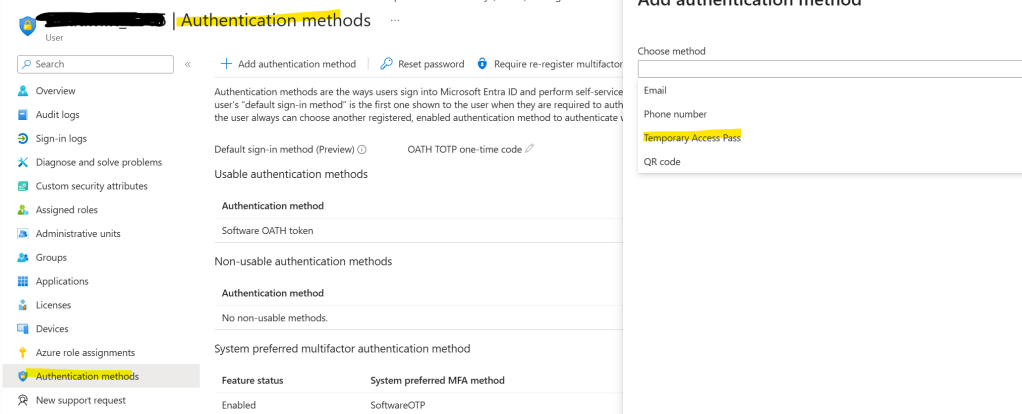
Step 2: Generate TAP
The administrator creates a Temporary Access Pass in the admin center:
User → Authentication Methods → Add Temporary Access Pass
Optionally configure delayed activation.
Step 3: Add Account Using TAP
The user:
- Opens Authenticator
- Selects Add account → Work or school account
- Enters their email address
- Uses the TAP when prompted
Once complete, a passkey is registered.
Step 4: Set Up Windows Hello for Business
On a Windows 11 device:
- Choose “Work or school account” during setup.
- Sign in with email.
- Use TAP when prompted.
- Complete Windows Hello setup using facial recognition, fingerprint, or PIN fallback.
Now the user has:
- A passkey linked to their account
- Windows Hello linked to their device
- No need to ever know their password
Practical Tips for a Smooth Rollout
- Always start with a small pilot group.
- Encourage biometric setup rather than PIN-only where possible.
- Keep TAP lifetime short to reduce exposure.
- Monitor sign-in logs and Conditional Access reports closely.
- Never apply enforcement tenant-wide without testing.
Phased deployment reduces support tickets and avoids lockouts.
Final Thoughts
Implementing phishing-resistant MFA in Microsoft 365 using passkeys, Windows Hello for Business, TAP, and Conditional Access changes the security model entirely.
You gain:
- Stronger protection against phishing
- Reduced credential theft risk
- Improved user experience
- Elimination of password sharing during onboarding
With proper planning and testing, new employees can start securely on day one without ever relying on traditional passwords.
For modern organizations, passwordless onboarding is no longer optional. It is the new security baseline.
 Salman Tariq
 SalmanTechBlogs
Leave a comment