Are you running out of space on your Google Drive? Or perhaps you’re considering switching to another cloud storage platform and want to take all your data with you? Whatever the reason, Google Takeout is the ultimate tool to help you export all your Google Drive data in one go without manually downloading each file or folder.
In this guide, we’ll show you how to use Google Takeout to back up or migrate your data quickly and efficiently.
What Is Google Takeout?
Google Takeout is a free service by Google that allows you to download a copy of your data from various Google services, including Google Drive, Gmail, Photos, and more. With just a few clicks, you can export your entire Google Drive to a downloadable file, saving you the time and hassle of manually downloading each file.
Why Use Google Takeout for Google Drive?
- Save Time: Export all your Google Drive data in one go without manually selecting and downloading files.
- Free Up Space: Clear up valuable storage on your Google Drive by backing up old files to your computer or an external drive.
- Migrate Easily: Move your files to a different cloud storage platform or backup solution seamlessly.
- Preserve Your Data: Keep a personal copy of your files for security and peace of mind.
How to Export Google Drive Data with Google Takeout
Follow these simple steps to export your Google Drive data:
1. Go to Google Takeout
Visit Google Takeout and log in to your Google account.
2. Select the Data You Want to Export
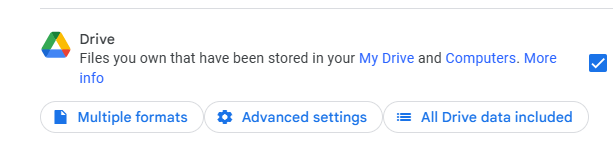
By default, Google Takeout includes all services. To focus on Google Drive:
- Click “Deselect All” at the top.
- Scroll down and check Google Drive.
You can also click the “All Drive Data Included” button to specify particular folders if you don’t want to export everything.
3. Choose Your Export Preferences
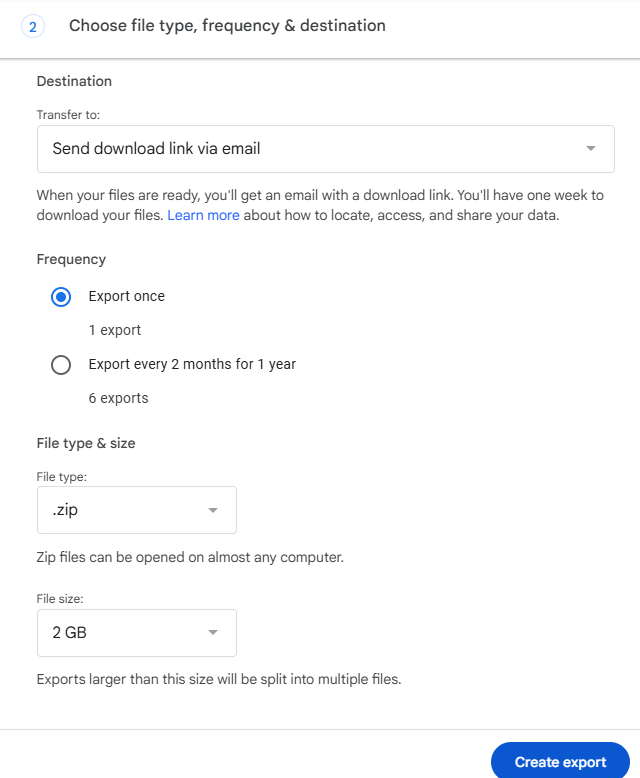
- File Type & Size: Select the file format (e.g., .zip or .tgz) and choose a size limit for each archive. Files exceeding the limit will be split into multiple parts. Best to set it at 50 GB.
- Export Frequency: Choose whether you want a one-time export or recurring exports every two months for up to a year.
4. Start the Export
Click “Create Export” to begin. Google will process your data, which may take some time depending on the size of your files. You’ll receive an email notification when your export is ready.
5. Download Your Data
Once your export is complete, Google will provide a download link. Simply click the link, download the archive file, and save it to your preferred storage location.
Tips for Managing Your Google Takeout Data
- Extract the Files: After downloading, unzip the archive to access your files.
- Transfer to Another Cloud Storage: Upload the exported files to services like Dropbox, OneDrive, or iCloud if you’re migrating.
- Backup Locally: Save a copy on an external hard drive or USB stick for added security.
Key Benefits of Using Google Takeout
- No need to spend hours manually downloading photos, videos, or documents.
- Maintain control over your data and ensure you have a personal backup.
- Simplifies the process of moving away from Google Drive or clearing space for new files.
Conclusion
Google Takeout is an incredibly convenient tool for anyone looking to export their Google Drive data quickly and efficiently. Whether you’re freeing up space, switching platforms, or simply creating a backup, this tool makes the process hassle-free.
So the next time you’re feeling overwhelmed by a cluttered Google Drive, let Google Takeout do the heavy lifting for you. It’s simple, fast, and puts your data in your hands.
Try it out today and take control of your files!
 Salman Tariq
 SalmanTechBlogs
Leave a comment