Let’s assume that you have got a client named XYZ Services (xyzServices.com) that you need to set up an Office 365 tenant for. As per the client, they have never used Office 365 services before, they have been on some On-Prem Exchange. When creating a new tenant, you are required to enter the Tenant name so for e.g. if we put xyzservices as our tenant name, the domain xyzservices.onmicrosoft.com would be managed domain that Microsoft creates for us.
Same is true if you want to take an ownership of a custom domain. You can either take ownership of the tenant and use that tenant OR if you already have got a new tenant you can just take ownership of old tenant to remove the custom domain from there. When you try to add a new custom domain, it will complain if the domain is in use by some other tenant.
https://o365.rocks can be used to check the availability of tenant name.
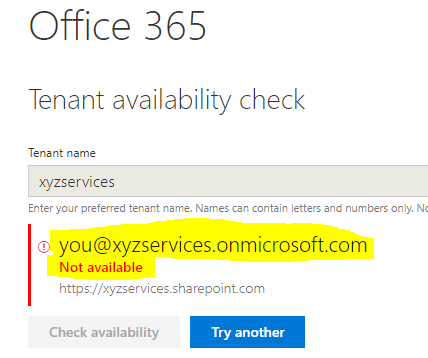
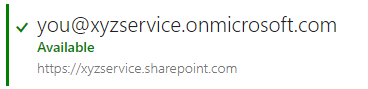
It’s possible that some of their user(s) signed up for Power BI using their @xyzservices.com email address which sets up Office 365 tenant @xyzservices.onmicrosoft.com hence it says it’s in use now.
You can take an ownership of that existing tenant instead of creating a new tenant with different name.
Steps to Take ownership of an existing Tenant
- Sign up on power bi using one of your accounts @xyzservices.com by browsing to https://powerbi.com/
- You will get a temporary code on your email address @xyzservices.com mailbox, once you validate that, you will be able to log on to Power bi successfully.
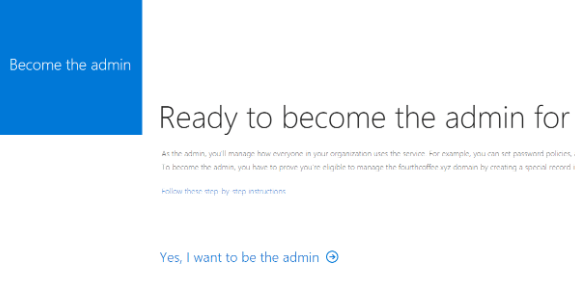
- You will then be prompted to become an Admin.
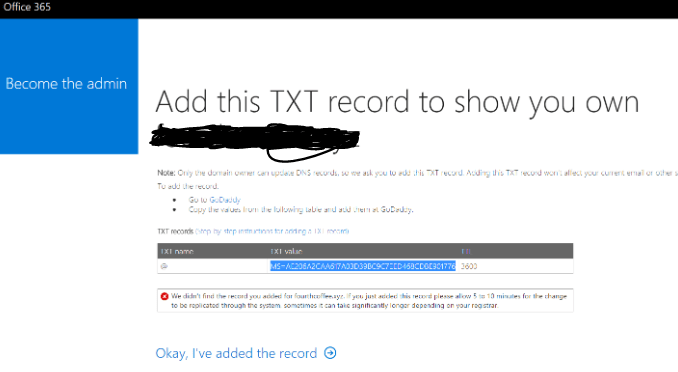
- Once you click on “Yes, I want to be the admin”, you will be provided with two methods of confirming that you are the owner of the domain xyzservices.com. One method is that Microsoft emails to the registered email address and you validate that. Second method is that it will provide you with a TXT record which you need to add to your domain xyzservices.com wherever it’s hosted at. It can take several minutes depending on your TTL settings for this to be updated.
 Salman Tariq
 SalmanTechBlogs
Leave a comment